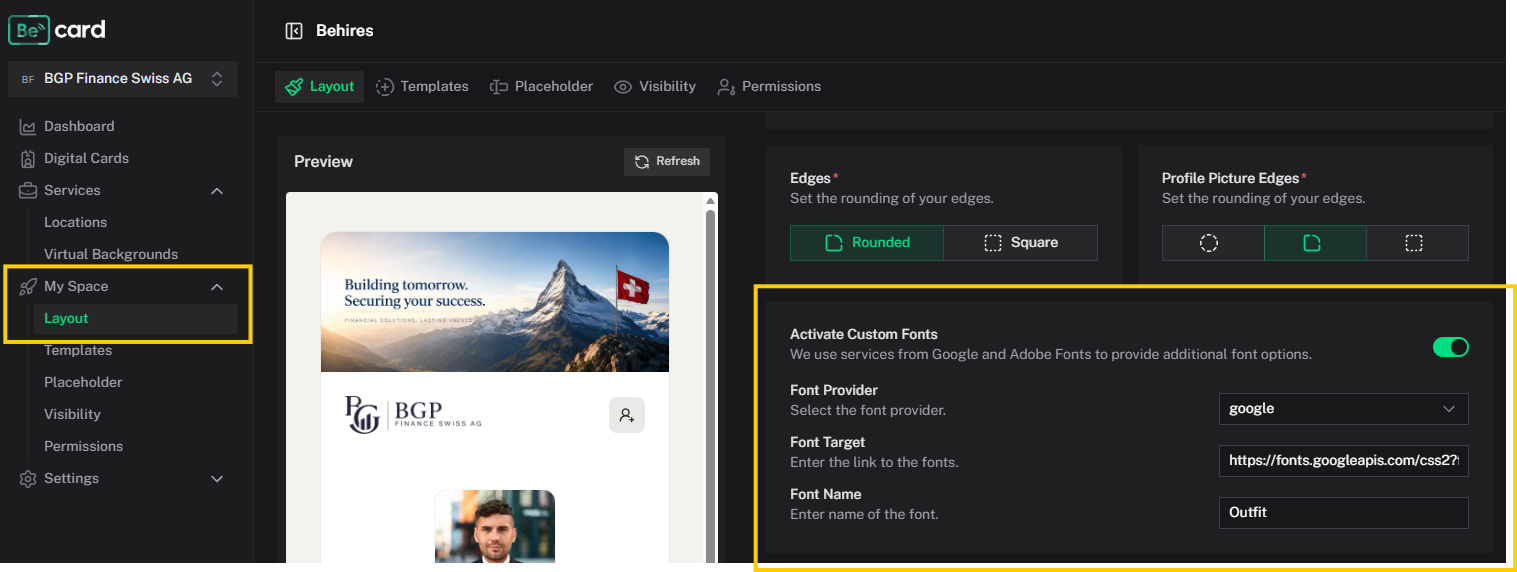
The settings can be found in the selected space in Becard Enterprise under My Space → Layout.
Prerequisite: An Enterprise licence is required for this feature; additional add-ons may be required.
A custom font can be used to adapt the appearance of digital business cards to the corporate design.
The following sources are supported:
- Google Fonts (https://fonts.google.com)
- Adobe Fonts (https://fonts.adobe.com)
- Self-hosted fonts hosted externally
Activating a Custom Font
- Open the desired space.
- Navigate to My Space → Layout.
- Enable the Activate Custom Font option.
- Select the desired provider:
- Google Fonts
- Adobe Fonts
- Custom font
- Enter the name and source of the font.
- Save the changes by pressing Enter.
The configured font is then automatically included on the digital business cards of the selected space.
Setting Up Google Fonts
- Open Google Fonts (https://fonts.google.com)
- Search for the desired font.
- Select the required font styles.
- Copy the CSS link provided by Google Fonts.
Such a link may look like this, for example:
https://fonts.googleapis.com/css2?family=Outfit:wght@100..900&display=swap
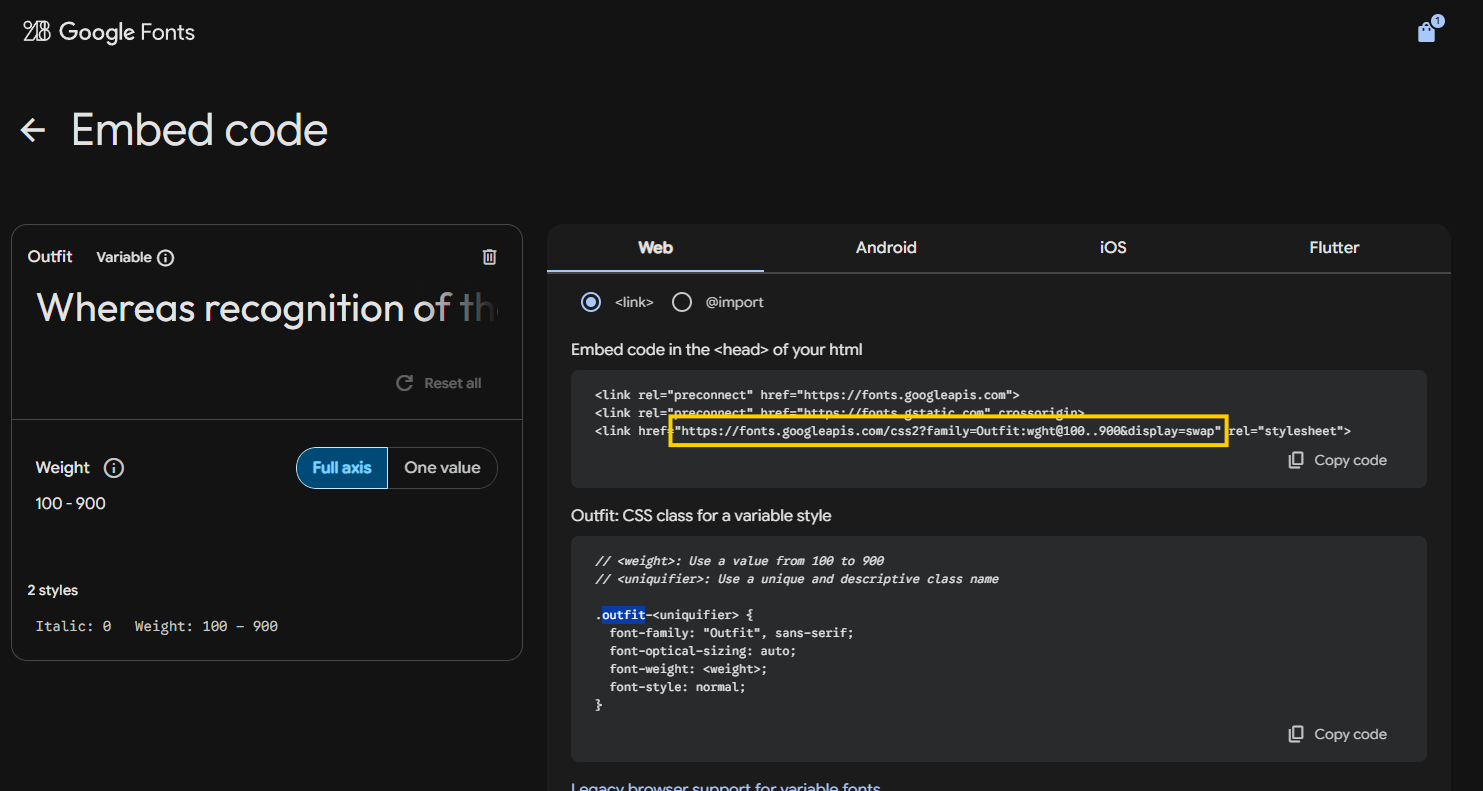
- Paste the link into the Font Target field in Becard Enterprise.
- Enter the exact name of the font in the Font Name field.
Example:
Outfit

Enter only the name of the font in the Font Name field. Do not enter additions such as serif, sans-serif or other fallback fonts.
After saving, the font is loaded automatically and used on the digital business cards.
Setting Up Adobe Fonts
- Open Adobe Fonts. (https://fonts.adobe.com)
- Search for the desired font.
- Add the font to an Adobe web project.
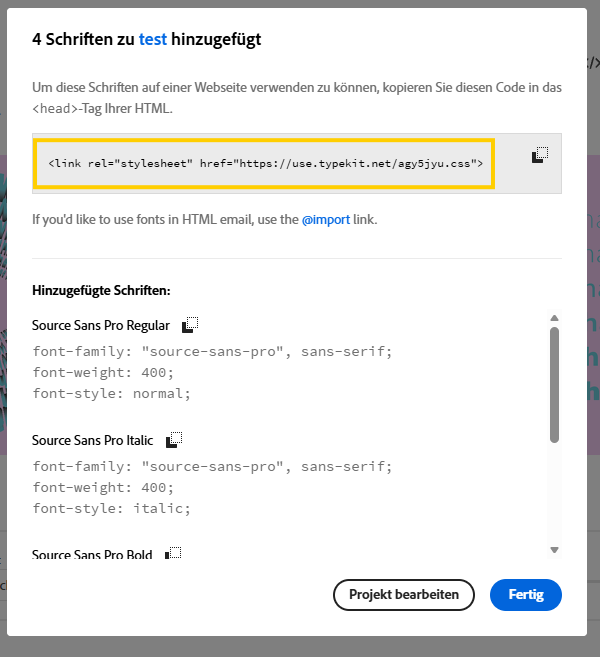
- Copy the CSS link for the web project provided by Adobe.
An Adobe Fonts link may look like this, for example:
https://use.typekit.net/abc1234.css
- Paste the link into the Font Target field in Becard Enterprise.
- Enter the exact name of the font in the Font Name field.
Example:
Source Sans Pro
Here too, use only the name of the font and do not add anything such as serif or sans-serif.
After saving, the Adobe font is automatically included on the digital business cards.
Make sure that your Custom Domain is authorised in the settings of the Adobe web project. Otherwise, Adobe Fonts may block the font from loading.
Setting Up Custom Fonts
Custom fonts must be hosted on a publicly accessible server.
Prerequisites
- A Custom Domain must be configured for the space.
- The CSS file and font files must be accessible via HTTPS.
- The files must be hosted on the same domain as the Custom Domain.
- A different subdomain is possible.
Example:
Custom Domain:
https://card.example.com

Fonts:
https://assets.example.com/fonts/custom-font.css
If the fonts are hosted on a different subdomain, the server may need to allow the files to be loaded using the appropriate CORS headers.
Providing the CSS File
Provide a CSS file with any name on your server, for example:
https://assets.example.com/fonts/custom-font.css
Enter this URL in the Font Target field in Becard Enterprise.
The font must be defined in the CSS file using @font-face:
@font-face {
  font-family: "Corporate Font";
  src: url("./corporate-font-regular.woff2") format("woff2");
  font-style: normal;
  font-weight: 400;
  font-display: swap;
}

@font-face {
  font-family: "Corporate Font";
  src: url("./corporate-font-bold.woff2") format("woff2");
  font-style: normal;
  font-weight: 700;
  font-display: swap;
}
Then enter the value of font-family defined in the CSS file in the Font Name field:
Corporate Font
The name must match the definition in the CSS file exactly. Pay attention to spaces and capitalisation.
Recommended File Format
We recommend using the WOFF2 format, as it offers good browser compatibility and a small file size.
Where possible, only the font styles that are actually required should be provided. This avoids unnecessary downloads and improves the loading time of the digital business cards.
Field Overview
| Field | Description | Example |
|---|---|---|
| Provider | Source of the font | Google Fonts |
| Font Target | URL of the font's CSS file | https://fonts.googleapis.com/css2?family=Inter... |
| Font Name | Exact name of the font | Inter |
Troubleshooting
The Font Is Not Displayed
Check the following points:
- Is the Custom Font option enabled?
- Was the configuration saved?
- Is the name in the Font Name field spelt correctly?
- Is the URL in the Font Target field publicly accessible?
- Is the URL loaded via HTTPS?
- Is the Custom Domain authorised in Adobe Fonts?
- Does the external server allow access to the CSS and font files?
- Do the paths to the font files defined in the CSS file match?
The Default Font Continues to Be Displayed
In this case, the browser was probably unable to load the custom font. Open the URL from the Font Target field directly in the browser and check whether the CSS file is accessible.
For custom fonts, you should also check whether the .woff2 files linked in the CSS file can be opened publicly.
Individual Font Styles Do Not Work
A corresponding @font-face definition must be available for each font style used.
Example:
@font-face {
  font-family: "Corporate Font";
  src: url("./corporate-font-medium.woff2") format("woff2");
  font-style: normal;
  font-weight: 500;
  font-display: swap;
}
For example, if the definition for font-weight: 700 is missing, the browser may not display the bold font style correctly.
Legal Notice
Make sure that the necessary usage and web font licences are available for the font used.
This applies in particular to self-hosted or commercially licensed fonts. Becard does not provide licences for externally embedded fonts.
Comments
0 comments
Please sign in to leave a comment.