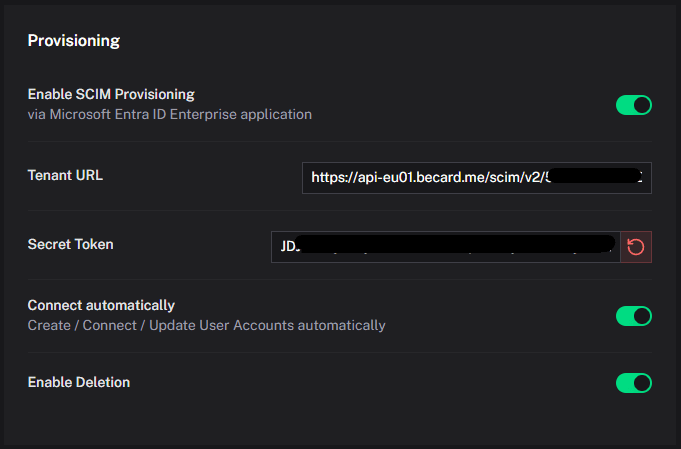
These settings can be found in the selected directory in Becard Enterprise under “Provisioning”.
The SCIM integration allows users to be synchronised automatically between Microsoft Entra ID (formerly Azure Active Directory) and Becard. Alternative providers that support SCIM provisioning are also supported, but the integration has been optimised for Microsoft Entra.
Provisioning enables:
- Automatic user creation
- Automatic creation of digital business cards
- Synchronisation of profile data
- Centralised user management via Microsoft Entra ID
Requirements
- An active Microsoft Entra ID account
- Administrator rights in Microsoft Entra ID
- An active Becard Enterprise environment
- A valid SCIM endpoint
- A SCIM API token from Becard
- A space in Becard with a valid Enterprise licence
- The selected directory must be connected to the valid space
SCIM credentials and presets in Becard
Make sure that the “Enable SCIM Provisioning” function has been activated.
The following data provided by Becard is required for setup in MS Entra:
- Tenant URL
- Secret Token
A new token can be generated at any time using the red button with the loading icon next to the secret token.
When “Connect automatically” is enabled, user accounts are created in addition to digital business cards to enable employee login. If user accounts already exist, the digital business card is linked automatically.
When “Enable Deletion” is disabled, the business cards remain available in Becard after the user has been removed from MS Entra.
Set up Microsoft Entra and an Enterprise Application
Please make sure that you have sufficient permissions to sign in to Microsoft Entra.
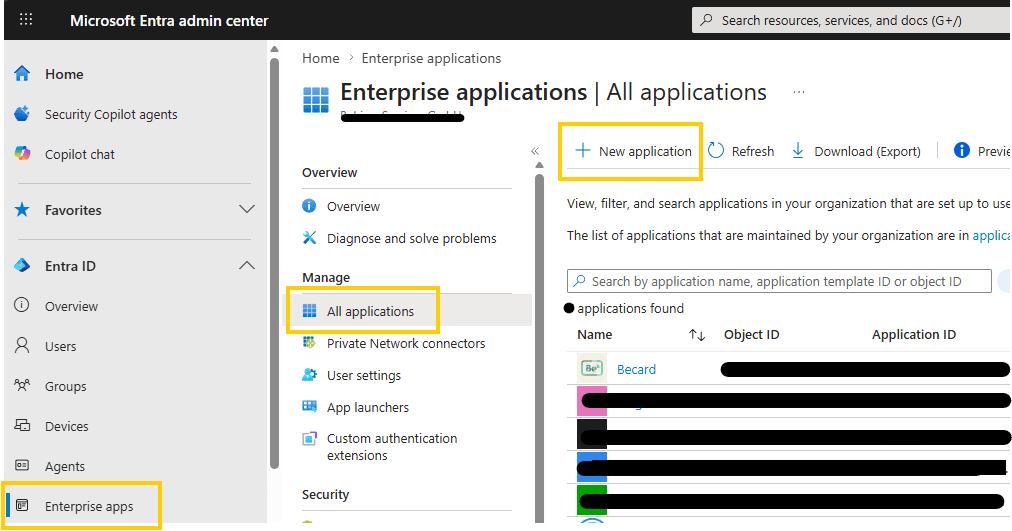
To do this, go to the Microsoft Entra admin centre
- Step: Navigate to “Enterprise apps” - “All applications” - “New application”
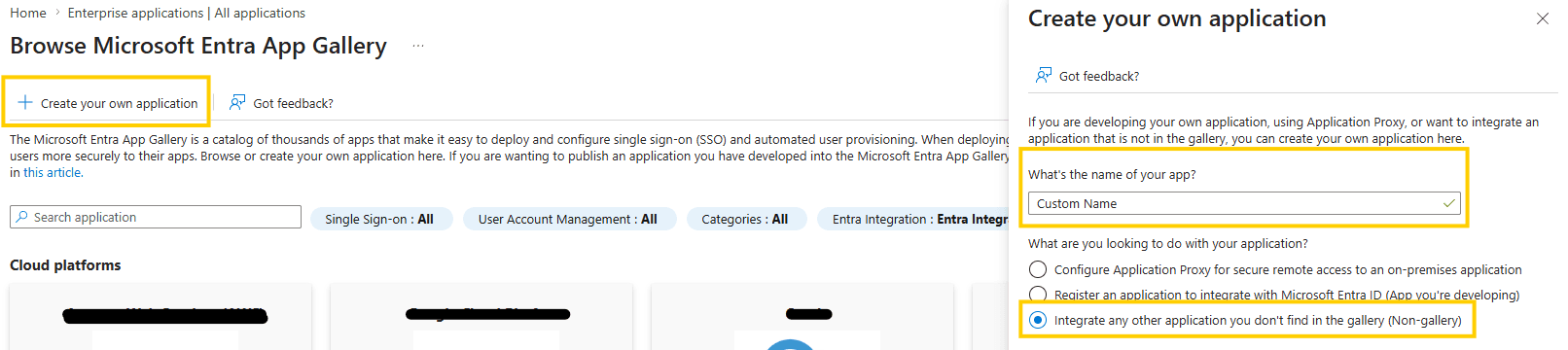
- Step: Create your own application via “Create your own application”, then choose a custom name for the Becard application and select “Integrate any other application you don't find in the gallery (Non-gallery)” to create a custom application.
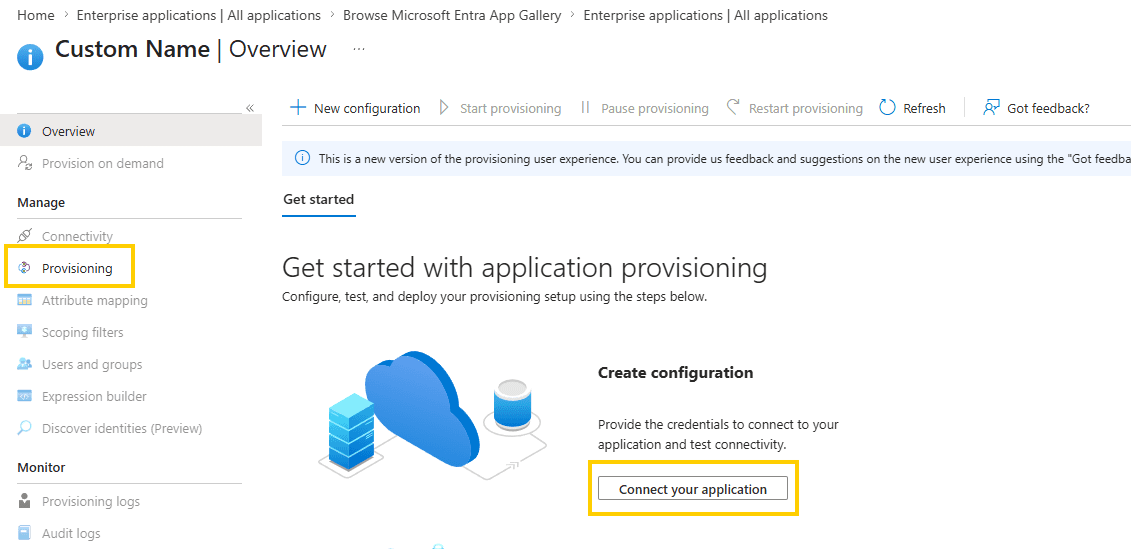
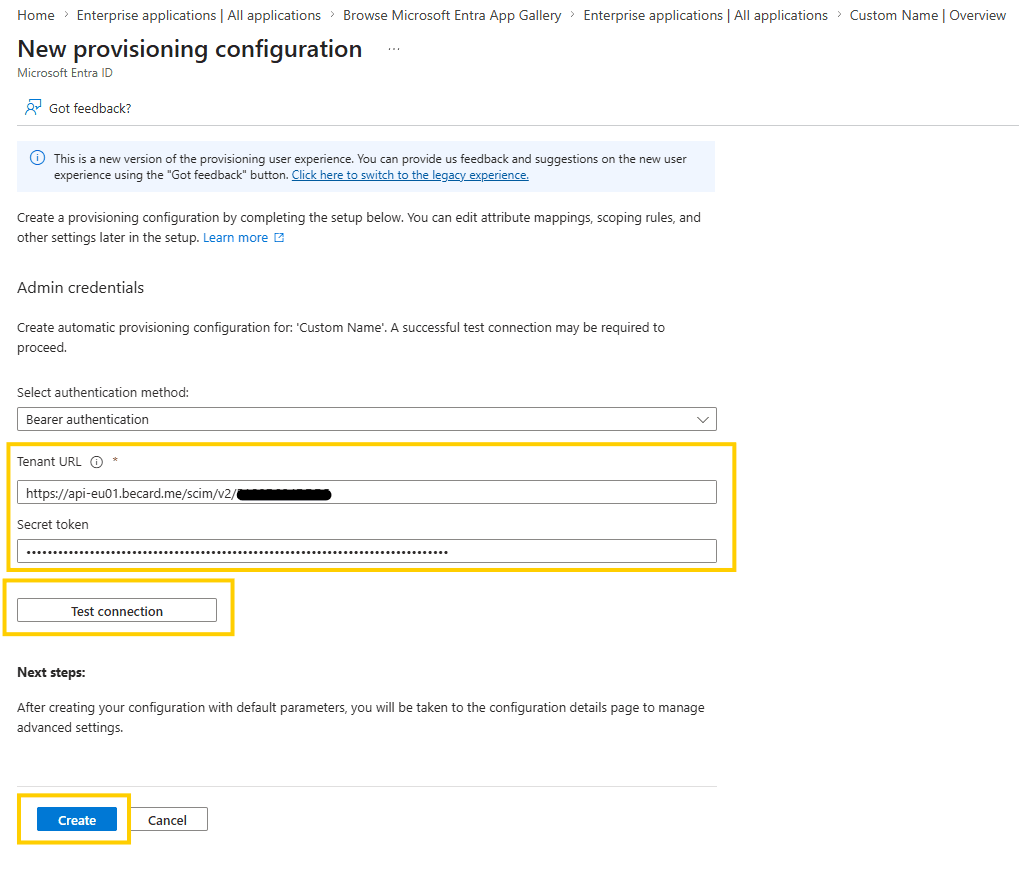
- Step: Select “Provisioning” and then “Connect your application”, and enter the “Tenant URL” and “Secret token” provided by Becard. Then click “Test connection” and subsequently “Create”.
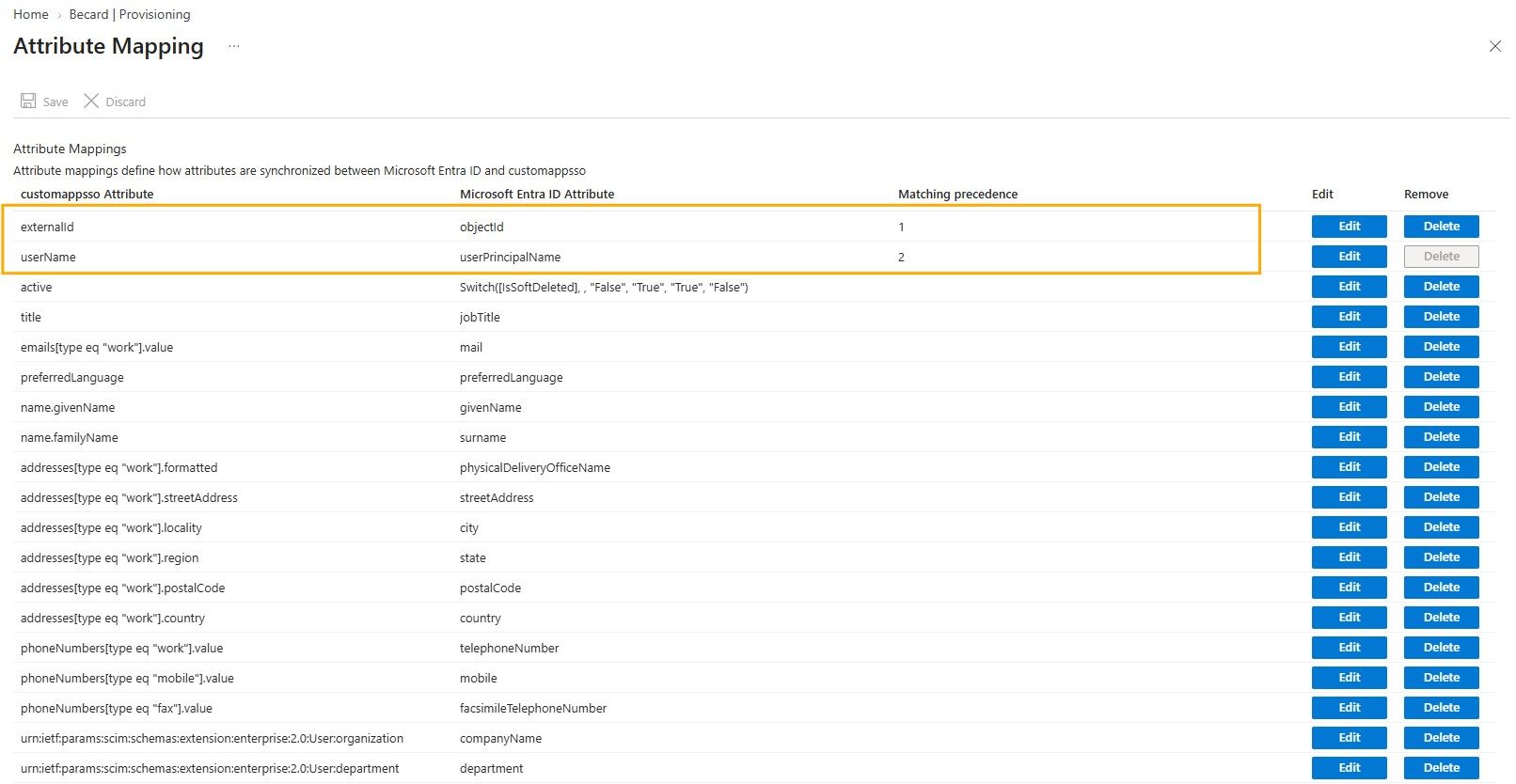
- Step: Adjust the “User-Attribute-Mapping”. It is important to change the source attribute for “externalId” to “objectId”. Further adjustments can be made independently. To do this, go to “Attribute mapping” - “Users”.
- Final step and further adjustments: Under “Users”, add individual users or entire groups that are to be synchronised.
When using groups
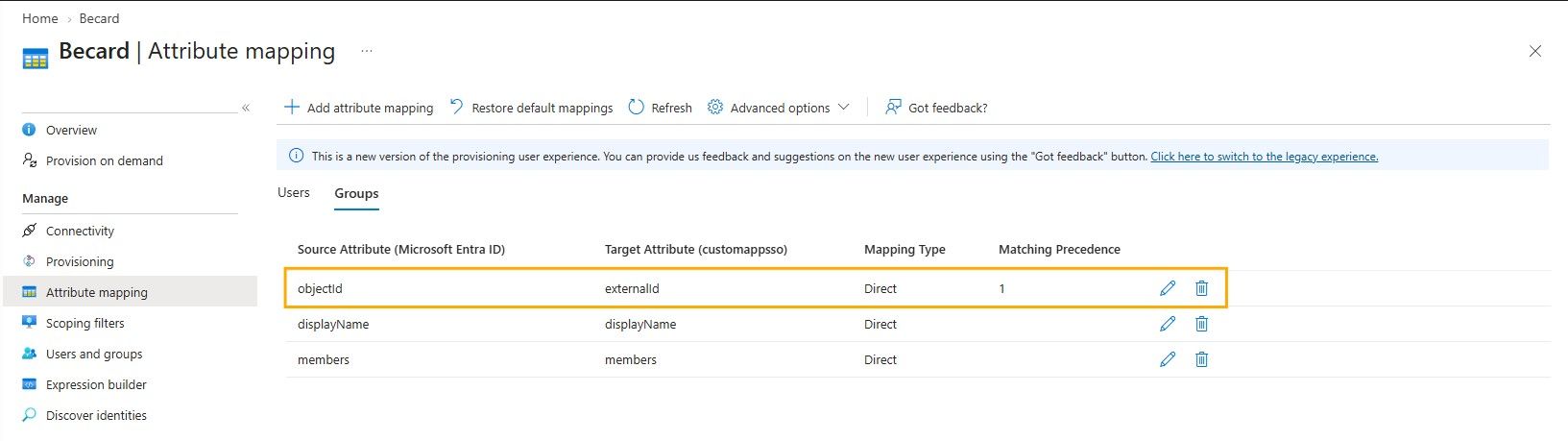
- Configure the group attribute mapping correctly
Enable automatic provisioning
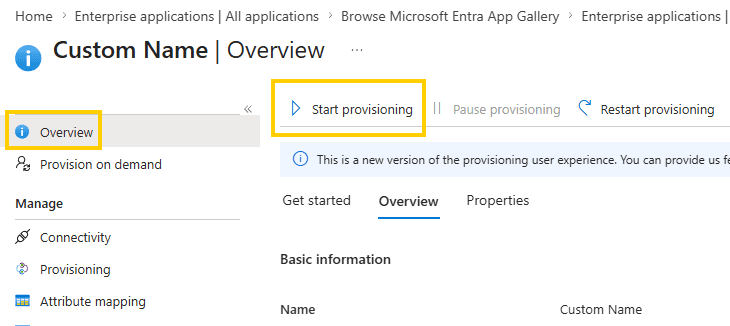
After setup, provisioning must then be started under “Overview”.
Check synchronisation
After successful synchronisation, the users will appear automatically in Becard.
The following are synchronised, among other things:
- First name
- Last name
- Email address
- User status
Profile pictures cannot be synchronised.
Deactivate users
Info:
Enable Deletionmust be enabled to perform the deletion process.
When a user is deactivated or removed in Microsoft Entra ID:
- the user is automatically deactivated or deleted in Becard
- when a group is removed in Microsoft Entra, all business cards and user accounts from the respective group are also deleted or deactivated
Further information
Under the user in the Becard directory -> Account Information, you can check whether the user has been synchronised. If a provider ID is stored, the assignment was successful. The same can be checked under Digital Cards to see whether the associated business card has been created. In the business card under Settings -> Thrid Party Connection, you can see which reference was used and through which group the assignment was made.
Common errors
Unauthorised / 401
Check:
- Bearer token is correct
- There are no spaces in the token
- Token is still valid
Test Connection failed
Check:
- SCIM URL is correct
- HTTPS is reachable
- Firewall settings
Users are not synchronised
Check:
- Users assigned to the application
- Provisioning enabled
- Synchronisation logs in Microsoft Entra ID
- externalId correctly assigned in the user mapping
Synchronisation intervals
Microsoft Entra ID normally synchronises changes automatically every 20–40 minutes.
Comments
0 comments
Please sign in to leave a comment.