These settings can be found in the selected Directory in Becard Enterprise under "Onboarding".
Through the Becard Directory, employees can automatically receive a personalised email when they register for the first time. This feature is designed to explain how to use the digital business card and make it easier to get started with Becard.
Depending on the company and use case, the digital business card can be used in different ways.
Possible Use Cases
- Using the digital business card exclusively via the personal link
- Using the digital business card with the Becard app
- Using the digital business card with the Becard app and physical products (e.g. NFC cards or accessories)
Requirements
The following requirements must be met to use the onboarding feature:
- The company domain used for registration must be stored in the Directory
- The Directory must be linked to a valid Space
- The linked Space requires an active Enterprise licence
- The company domains must be stored and verified in the same Directory under "Associated Domains"
Personalised Emails
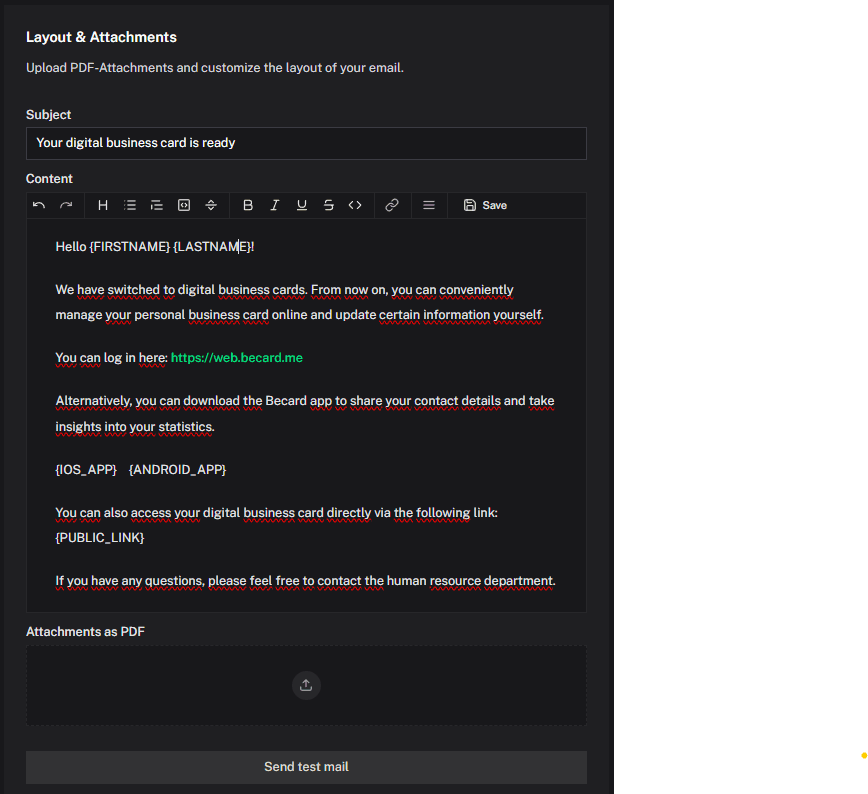
The welcome email can be customised and supports, among other things:
- Custom subject lines
- Individual content in Markdown
- Personal links to the digital business card
- Information on using the Becard app
- Links to app stores
- Attachments such as PDFs or guides (only PDF documents are supported)
By default, the logo of the linked Space is used. If no custom SMTP mail server is configured, emails are sent via the Becard mail infrastructure by default.
Available placeholders:
{FIRSTNAME} - First name
{LASTNAME} - Last name
{IOSAPP} - Link including image (badge) to the Becard iOS app
{ANDROIDAPP} - Link including image (badge) to the Becard Android app
{PUBLICLINK} - Link to the digital business card
{GOOGLEWALLET} - Link including image (badge) to Google Wallet
{APPLEWALLET} - Link including image (badge) to Apple Wallet
CC and BCC Recipients
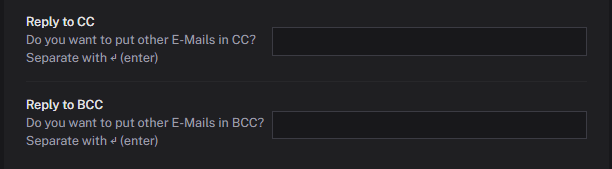
In addition to the personalised email, additional recipients can be added as CC or BCC recipients. After entering each email address, save it by pressing the Enter key.
This can be used, for example, to:
- inform the Human Resources department
- automatically notify team leads
- map internal documentation processes
Reminder Emails
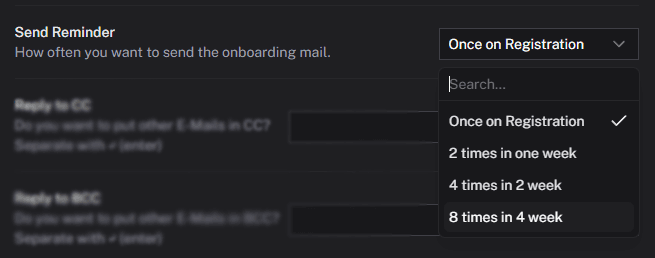
In addition to the initial registration email, automatic reminders can be activated.
The following options are available:
- 1 email directly upon registration
- 2 additional emails within the first week
- 4 additional emails within the first two weeks
- 8 additional emails within the first four weeks
The reminders help increase the activation rate and use of the digital business cards.
Custom SMTP Mail Server
A custom SMTP mail server can optionally be added.
This allows emails to:
- be sent via the company's own domain
- appear in the company's own corporate design
- be better integrated into existing security and compliance policies
Further information on SMTP setup can be found in the SMTP documentation.
Recommendations
For an optimal user experience, it is recommended to:
- provide clear instructions for use
- include download links for the Becard app
- name a contact person within the company
- activate reminder emails
- use your own SMTP server
Comments
0 comments
Please sign in to leave a comment.